How to Handle Multi-Currency Invoicing in QuickBooks Online Advanced
Buying in USD, selling in CAD? Here's how multi-currency invoicing works in QBO Advanced and how automation eliminates the manual pain.


If you’re a Canadian business buying in US dollars and selling in Canadian dollars, you already know the pain. Every invoice is a mini accounting project.
Your supplier bills you in USD. Your customers pay you in CAD. QuickBooks Online Advanced supports multi-currency, but it doesn’t make the data entry go away. You still have to manually enter every transaction in the right currency with the right exchange rate, and keep everything linked so your books make sense at year end.
Here’s how it works, and how to stop doing it by hand.
How Multi-Currency Works in QBO Advanced
When you enable multi-currency in QuickBooks Online Advanced, each customer and vendor gets assigned a home currency. Invoices and bills are created in that currency automatically. QBO tracks exchange rates and calculates realized gains and losses when payments are applied.
On paper, this sounds great. In practice, the manual work is still significant.
You have to enter USD supplier bills line by line, making sure the currency context is correct. You have to create CAD invoices for the same items at the Canadian price. You have to manage your product list knowing that the cost is in USD and the sell price is in CAD. None of this happens automatically.
The Manual Pain for Canadian Importers
A typical workflow for a Canadian distributor looks like this: a supplier invoice arrives in USD. You open QBO, navigate to the vendor (which is set to USD), and enter each line item with the USD cost. Then you switch to the customer side, find the right customer (set to CAD), and create the invoice with your Canadian pricing and markup applied.
The two invoices don’t map one-to-one because of exchange rates, markups, and pricing tiers. So you can’t just copy the supplier bill. You have to reference your pricing structure for every single line item.
Multiply this by 20 to 50 orders per week and it becomes a full-time job. One that’s tedious, error-prone, and doesn’t require any real judgment. Just careful data entry.
How Automation Solves This
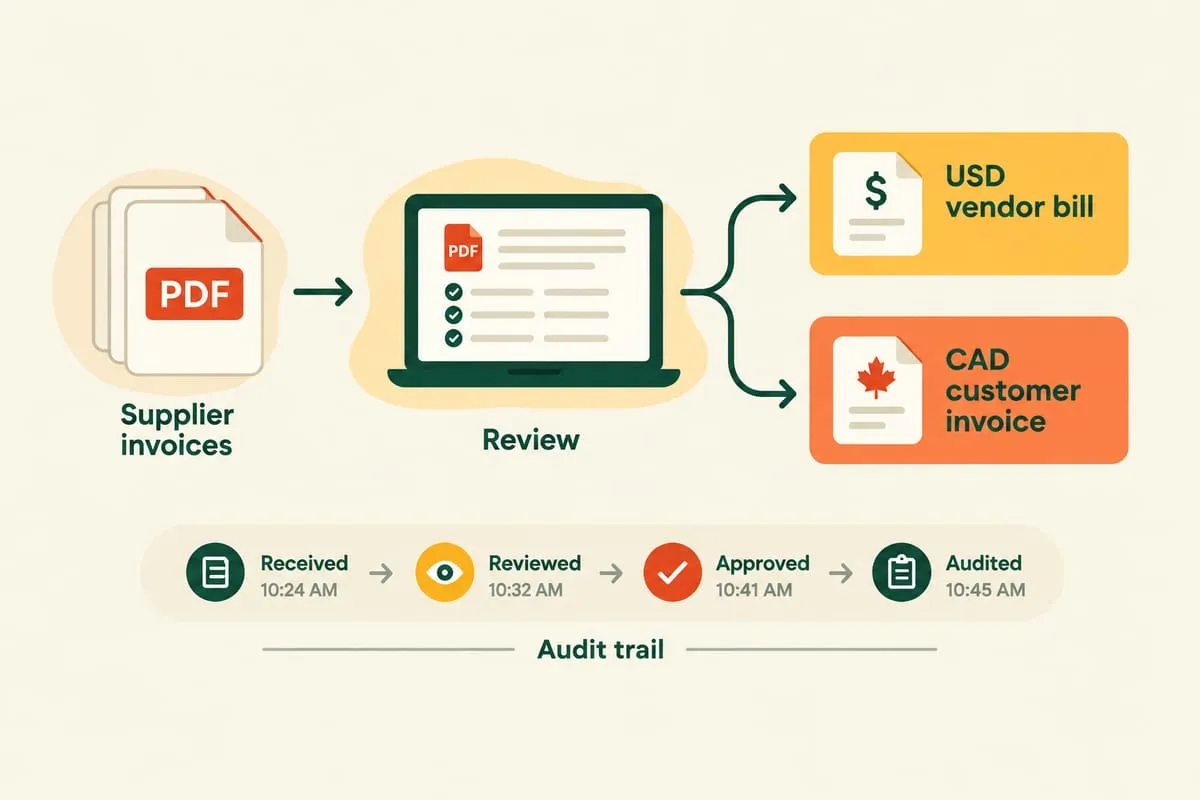
The automated approach maintains a product catalogue with both USD cost and CAD sell price. When a supplier bill arrives as a PDF, AI extraction reads the line items and enters them as a bill in QBO under the correct USD vendor. When a customer order comes in, the system creates the invoice in QBO under the correct CAD customer with the Canadian pricing applied.
The purchase order number links the two transactions. QBO handles the exchange rate math. And your product catalogue ensures the right prices are applied every time, regardless of which person (or system) creates the invoice.
What used to take 15 to 20 minutes per order now takes a quick review and one click to approve.
Tips and Gotchas
Enable multi-currency before creating vendors and customers. Once you turn it on, it can’t be turned off. And if you created a vendor before enabling multi-currency, you may need to recreate them with the correct currency assigned.
Set up USD vendors correctly from the start. The vendor’s currency determines what currency their bills are entered in. Getting this wrong means re-entering transactions.
Use QBO Advanced for the best multi-currency support. Lower tiers have limited or no multi-currency capability. If you’re doing cross-border business regularly, the upgrade is worth it just for this feature.
Be aware of exchange rate timing. QBO uses the exchange rate on the transaction date, not the payment date. The difference between the two creates realized gains or losses that QBO tracks automatically, but your accountant should be aware of this at tax time.
Consider your pricing tiers. If different customers get different markups on the same products, your automation needs to know which tier each customer belongs to. This is a configuration step during setup, not something you want to figure out on the fly.
When Automation Makes Sense
If you’re processing fewer than five multi-currency transactions per week, the manual approach is probably fine. Annoying, but manageable.
If you’re processing 20 or more per week, the math on automation starts working fast. The time savings alone justify the investment, and the reduction in data entry errors saves you from costly corrections during reconciliation and tax season.
If this sounds like your situation, book a discovery call and we’ll walk through what multi-currency automation would look like for your specific workflow.