How to Automatically Forward Tracking Numbers to Customers from QuickBooks Online
Stop manually copying tracking numbers from carrier emails into QBO invoices. Here's how to automate shipping notifications for your customers.

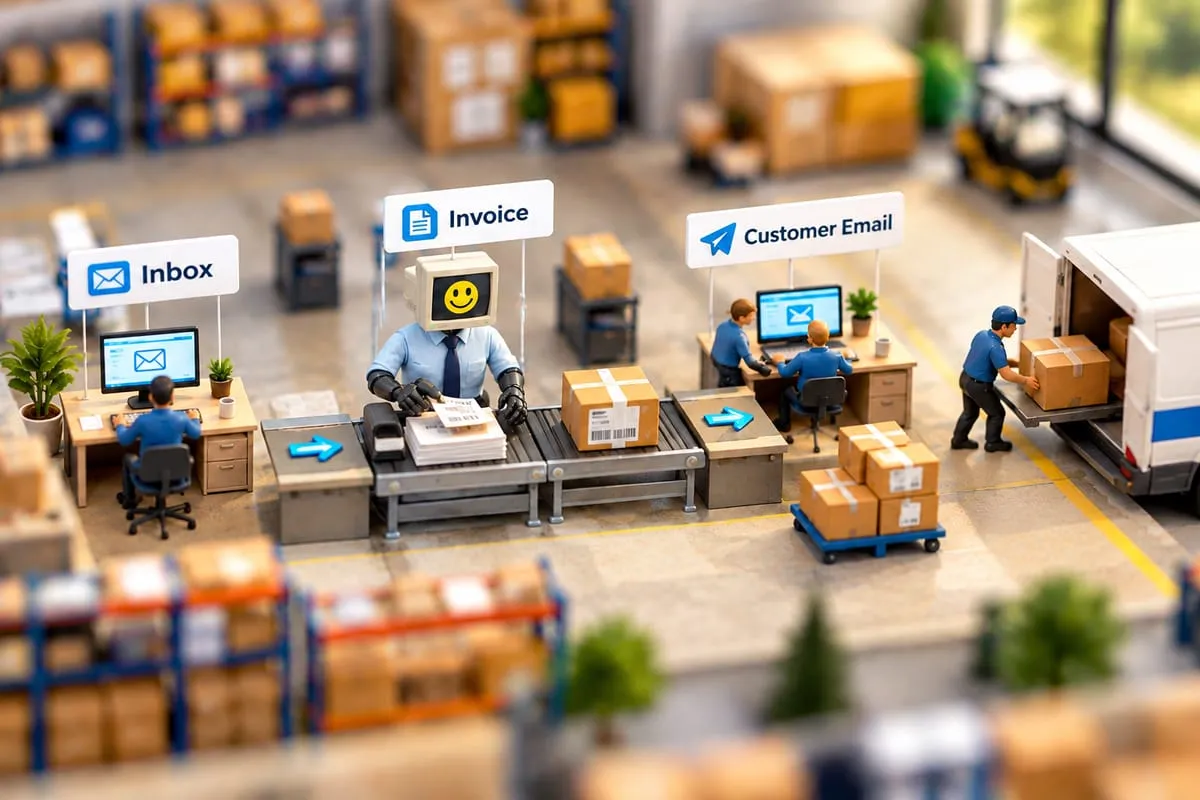
You get a shipping confirmation from the carrier. You open the email, copy the tracking number. You open QuickBooks Online, find the right invoice, paste the tracking number into a custom field or the notes section. Then you compose an email to the customer with the tracking info and hit send.
Now multiply that by 20 orders a day.
If you’re manually forwarding tracking numbers to customers from QBO, you already know this is one of those tasks that feels small but eats hours every week. Here’s how to automate it.
The Workflow You’re Doing by Hand
Most small businesses that ship products follow roughly the same steps:
- Carrier (UPS, FedEx, Canada Post) sends a shipping confirmation email with the tracking number.
- Someone opens that email, copies the tracking number.
- They log into QBO, find the matching invoice, and add the tracking number to a custom field or memo.
- They compose a separate email to the customer with the tracking details.
- They mark the order as shipped in whatever spreadsheet or system they’re using to track fulfilment.
Every step is manual. Every step is an opportunity for a mistake. Wrong tracking number on the wrong invoice. Email sent to the wrong customer. Or worse, the email never gets sent at all because someone got busy and forgot.
How Automation Handles This
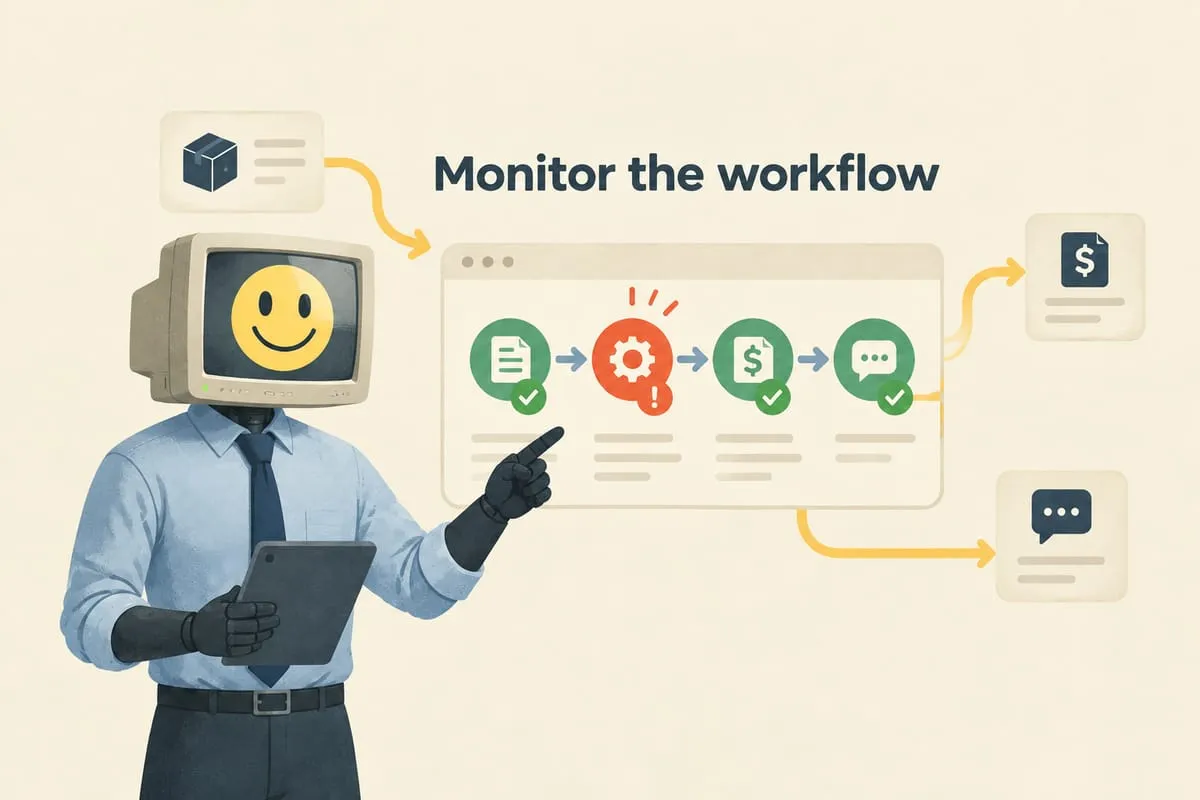
The automated version monitors your inbox (via Microsoft 365 or Google Workspace API) for carrier notification emails. When one arrives, the system extracts the tracking number and the order reference from the email body.
Then it matches that tracking number to the right order in your system, using whatever reference number appears in both the carrier email and your QuickBooks Online invoice. It updates the QBO invoice with the tracking information. And it sends a templated email to the customer with the tracking details, automatically.
The whole thing happens in seconds, with no human involvement required.
The Matching Challenge
The trickiest part of this automation isn’t the extraction or the email sending. It’s the matching. How does the system know which tracking email goes with which order?
You need a reference number that appears in both places. Some businesses use the QBO invoice number as the shipping reference. Others use a purchase order number with a consistent prefix or convention, so the system can match carrier emails back to the original order reliably.
If your carrier emails don’t include a clear reference back to your order system, you’ll need to establish one. This is usually a simple process change, like adding your invoice number to the carrier’s reference field when you book the shipment.
What About Edge Cases?
Not every order is straightforward. Split shipments mean multiple tracking numbers for one invoice. Consolidated shipments mean one tracking number for multiple invoices. Back-ordered items might ship weeks later.
Good automation accounts for all of this. Split shipments append multiple tracking numbers to the same invoice and send one notification per shipment. Consolidated shipments update all related invoices and send individual notifications to each customer. The key is designing the matching logic to handle your specific business rules, not just the happy path.
Can You Do This with Zapier?
For simple cases, maybe. If every carrier email has the same format and you only need to forward a tracking number without matching it to a specific QBO invoice, a basic Zapier workflow could work.
But once you need matching logic, error handling, and QBO invoice updates, you’re looking at a level of complexity that Zapier wasn’t designed for. Read more: The Difference Between Zapier, Make, and Custom Automation (And When You Need Each)
The Bigger Picture
Tracking number forwarding is usually just one piece of a larger order fulfilment workflow. If you’re automating this step, you probably also have opportunities to automate order intake, invoice creation, and supplier coordination. The tracking step is a great starting point because it’s simple enough to build confidence in the automation, but valuable enough to save real time every week.
If you’re spending hours each week on shipping notifications and want to explore what automation could look like for your fulfilment process, drop us a line. We’ll figure out what makes sense for your business.