Construction AP Automation: How to Stop Manually Entering Subcontractor Invoices
Your bookkeeper is entering every subcontractor invoice twice. Once in Buildertrend. Once in QuickBooks. Here's how to stop that.

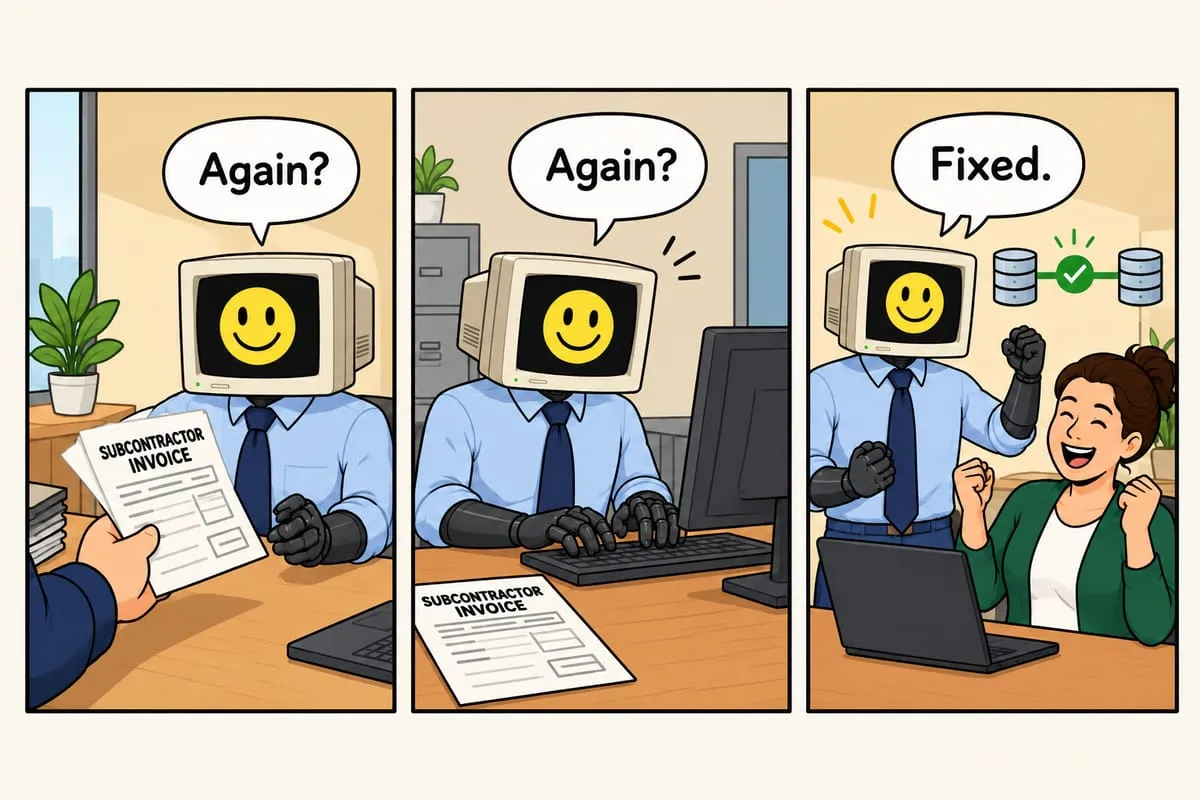
Your bookkeeper is entering every subcontractor invoice twice. Once in Buildertrend (or Procore, or CoConstruct). Once in QuickBooks. Here’s how to stop that.
The Construction AP Nightmare
A typical general contractor receives 50 to 100 subcontractor invoices per week. Each one needs to be reviewed (does it match the contract?), coded (which project, which phase, which cost code?), approved (PM sign-off), entered into the project management system, and entered into the accounting system.
Two systems that don’t talk to each other means double the data entry. The same invoice data gets typed in twice by the same person, or worse, by two different people who might enter it differently.
This is not a small annoyance. It’s a significant cost. A full-time bookkeeper or controller spending half their week on duplicate data entry is expensive. And the error rate on manual entry across two systems is higher than most construction companies realize until reconciliation time.
The Buildertrend/QBO Gap
Buildertrend tracks the project side: budgets, contracts, change orders, subcontractor commitments. QuickBooks tracks the accounting side: bills, payments, cash flow, tax reporting. The subcontractor invoice needs to exist in both.
Some construction companies use the built-in “sync” between these systems. It helps with some basics, but most find it unreliable or too limited for their needs. Cost code mapping doesn’t transfer cleanly. Project phases don’t align. And when the sync breaks, nobody notices until the numbers don’t match at month end.
What Automation Does
The automated approach works like this:
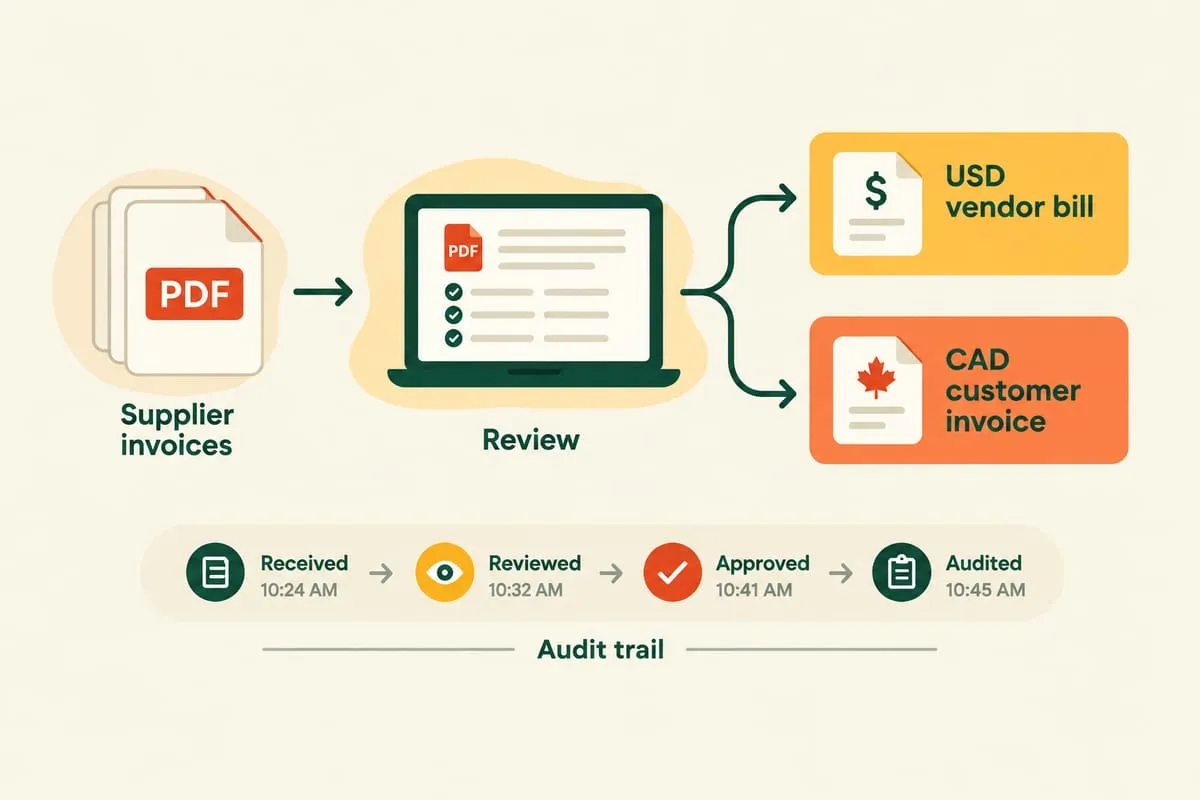
AI extracts invoice details from the PDF. The subcontractor sends their invoice as a PDF. AI reads it and pulls out the key data: vendor name, invoice number, amount, date, line items, and any project references.
The system matches it to the right project and contract. Using the subcontractor’s name and the project reference on the invoice, the automation links it to the correct project, phase, and contract in your system.
It validates against the contract amount. Is this invoice within the contract budget? How much has this sub billed to date? Is this a progress billing or a final invoice? The system checks automatically and flags anything that looks off.
It routes for approval. Based on your rules. Under $5,000 auto-approves. Over $5,000 goes to the project manager’s approval queue. Over $25,000 needs the owner’s sign-off. Whatever your thresholds are, the system follows them.
It enters the data in both systems simultaneously. Once approved, the invoice is entered in Buildertrend (or your project management tool) and QuickBooks at the same time, with the correct cost codes, project allocations, and GL accounts. One entry, not two.
It flags anything that doesn’t match. If the subcontractor bills more than their contract allows, if the cost code doesn’t exist, if the project is already closed, the system catches it and sends it to a human for review.
The Cost Code Challenge
Every construction company has their own cost coding structure. Some use CSI codes. Some have custom codes built up over years. Some have codes that mean different things depending on which project manager set them up.
Automation needs to learn your specific coding structure. This is a configuration and discovery task, not an AI task. During setup, we map your cost codes, define the rules for which codes apply to which types of work, and configure the system to apply them consistently.
Once the codes are mapped, the system applies them the same way every time. No more “the bookkeeper coded it wrong because she didn’t know this was a framing invoice, not a drywall invoice.” Read more: What Is Discovery and Why Do I Need It Before You Build Anything?
The Mobile Approval Queue
Construction AP almost always needs approvals. Project managers need to sign off on their subs’ invoices before payment. But PMs are on job sites, not sitting at desks.
The custom app provides a mobile-friendly approval queue. The PM sees the invoice, the contract it’s against, how much has been billed to date, and the percentage complete. They tap approve or flag. It takes 30 seconds per invoice instead of waiting until they’re back in the office to log into two different systems.
The same routing pattern works for the upstream side of construction AP too — change orders and subcontractor agreements. Post-signature workflows can send an agreement for signature, update the project budget the moment it’s executed, and notify accounting so the next invoice against that commitment is already expected.
The Bottom Line
If you’re running a construction company and someone on your team is entering subcontractor invoices into two separate systems, that’s a process that should be automated. The time savings are significant, the error reduction is immediate, and the approval workflow actually gets faster because it goes to people’s phones instead of sitting in an inbox.
Everything described here — intake, matching, approvals, payment scheduling — is one industry’s version of the same pattern. If you want the full picture of what an automated AP process looks like end to end, see our accounts payable workflow automation service page.
Want to see what construction AP automation would look like for your company? Book a discovery call and we’ll walk through your current process together.